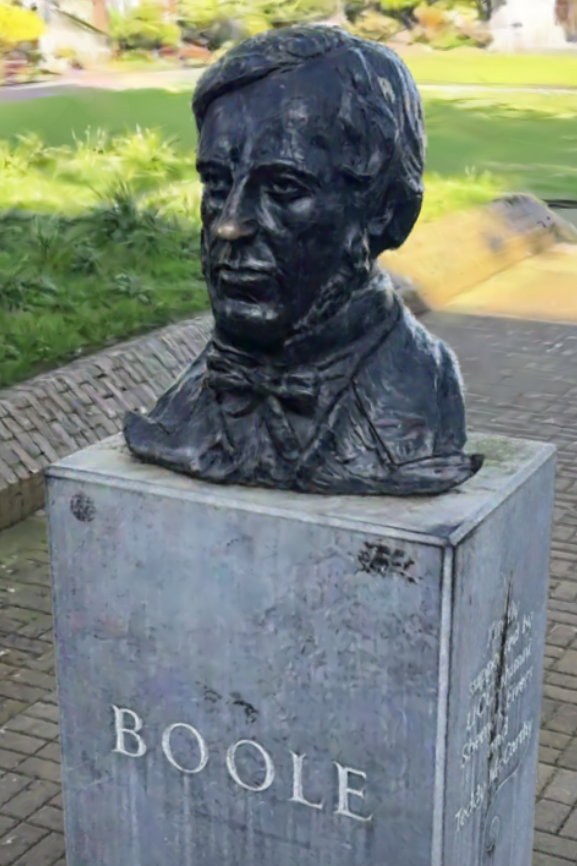
I”ve been on a Scaniverse kick. I mentioned it back in March. Since then I’ve been enjoying making scans of objects in my neighborhood and on vacation. It’s a free app for iPhone and Android. (Geez, I sound like a marketing droid. But, honestly, it’s fun to play with and I like seeing 3D Gaussian splats get used.)
What’s nice about the app is that, even if you don’t scan anything, you can see what scans other people have uploaded in whatever area you’re in. Scans are organized by location. That said, some of those scans are poor quality – I wish I could filter them out, and have suggested the same.
The basic things I’ve found with scanning a scene:
- Pick the “Splat” mode for representing the scene. It’s cool. I’ve never bothered trying the “Mesh” mode.
- Start scanning from whatever view you want others to first see the object at.
- Move around! Though, slowly. Walk around and video the object from all sides, if possible. You can kind of see what areas it’s got enough data for while you scan.
- I usually go around an object at least twice, once with my camera low, once high, and at different distances. Scan for one to three minutes. Going for more than three minutes is too much (they say so).
- Processing later is fine, as processing, enhancing, and uploading ties up the phone (can’t do anything else) and takes a lot of charge (maybe 5% or more, per scan?).
- “Enhance scan” seems worth doing, and can even be done multiple times – I haven’t experimented.
- You don’t have to upload and share any scan, you can keep it just in your library. The library’s a bit odd: you can rename a scan in your library but it won’t change the name on the map, and vice versa. I rename both.
- More good tips can be found in Library, then the Gear icon. They’re quick and worth reading.
For more on splats and Niantic’s interest and history with them, see this worthwhile article – not dumbed down and with useful links. As mentioned before, Niantic has made their SPZ compressed format public, MIT license. Looking at my own scans, each takes up anywhere from 64 Mb to 632 Mb, with the average range being around 200 Mb.
Update: there are plenty of competitors now out there. The NY Times has a dated but reasonable overview, and their field guide presents some useful tools and techniques. For example, SuperSplat is a fairly nice in-browser (no download!) editor. One not listed there: Airvis. And the RadianceFields site collects a huge number of related platforms, though it’s a bit too much for my tastes. The Reddit group has more practical pointers.
Splats can take up a lot of space on your phone; you can download the models from your library (on your phone) and then delete them. Scaniverse lets you upload and share, but the uploaded model can’t later be downloaded using their interface. If you do share on Scaniverse, delete from your library, and later realize you want to download the model, there is a way: the SPZ/PLY File Converter. In the first line, point it at your Scaniverse online shared scan site’s URL, the second line is the URL of your actual scan on Scaniverse. You can hit the Map button to show you where your scans are, but to download, hit the Info button. You’ll then see a “Download normal” button – don’t bother clicking that. Instead, click the “Direct link” link to the right and an SPZ will download.
My shared scans are here, and here’s one that should appeal to all computer science types (people rub his nose for good luck):